Keiserens nye argument

Massehysteriet har bredt seg i det politisk korrekte hylekoret etter at en liten gutt kom med den uhyrlige påstanden at Keiseren ikke hadde klær sist uke. Fullstendig uten kildekritikk har den blodtørstige venstresiden og de logrende lydige mainstream-mediene slukt den lille guttens påstander rått. Den siste uken har vi sett en heksejakt og hatkampanje mot Keiserens garderobe og klesvalg som savner sidestykke.

Hadde mediegestapistene vært litt mindre opptatt av å demonisere oss Keisertilhengere, hadde de kanskje sett nærmere på bakgrunnen til denne påståelige lille gutten. De hadde ikke trengt å grave særlig dypt for å oppdage at han har dype bånd til rabiate Keiser-motstandere.

Bloggeren BunadsDude har i et strålende innlegg avdekket at den lille gutten som skrek «naken Keiser» har deltatt på anti-Keiserlige indoktrineringsleire de siste somrene. Under dekke av sommerlige aktiviteter som volleyball og kassegitar rundt leirbålet, kan BunadsDude avsløre at leirens virkelige formål er hjernevask, terrortrening og allsang av Keiserhatende propagandasanger som for eksempel «Barn av regnbuen».

I mellomtiden har den uvitende bermen latt seg rive med av den lille guttens hatpropaganda, og i fullt alvor begynt å diskutere om Keiseren faktisk stilte uten klær på sist ukes arrangement. Det sirkulerer bilder på venstreekstreme nettsider som visst nok skal vise Keiseren i nettoen.

Alt dette viser bare hvor langt disse landssvikerne er villige til å gå for å spre sine giftige løgner, og for å stigmatisere oss fredelige, frihetselskende Keiserforkjempere.

De prøver å skape et forvrengt bilde av historien der Keisere og adel visst nok skal ha hatt stor makt, rikdom og eiendom. Virkeligheten er selvsagt at Keiser og adelskap til alle tider har vært nøkterne og hardt arbeidende, mens de såkalte «lavere klasser» har veltet seg i rikdom og gåselever i sine overdådige palasser.

Nå har det gått så langt at man ikke engang kan fredelig fastslå at Keiseren er godt påkledd uten å bli kneblet og nedsablet av nakenhetsmarxistene. Vi som sprer sannheten om Keiserantrekket i kommentarfelt og på frihetselskende nettsider blir forsøkt truet til taushet, og må oppleve at heksa vår blir jaktet, og at demoniseringen vår blir stigmatisert med knebel, hets og politisk korrekt blandet hylekor.

Busting blocks

‘Tis the season for the great American blockbuster movies. I always look forward to this with a due sense of exhaustion and dread, as Blackadder would say. When they rock, they really rock (Inception in 2010). And when they suck, they really suck (this year’s Pirates Of The Caribbean: On Stranger Tides).

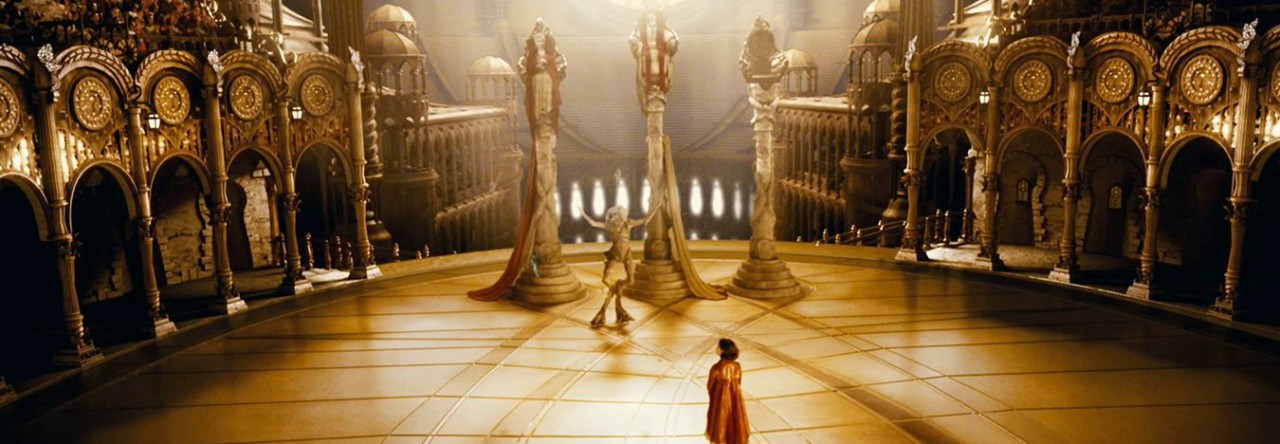
Next year brings yet another Nolan blockbuster. Warner Bros are already rolling out the hype, and as usual the campaign seems to be an aesthetic feast of anticipation:

I can’t wait for this summer’s drivel to become history. Bring on 2012.

The Fat Draft

Writing is a strange activity. First it demands that you give up control. And later on in the process it demands that you take full control.

I have a tool designed to ensure that you stay in control when you’re working on second drafts. I call it The Fat Draft.

When you write first drafts and brainstorm you need to let go of conscious control of your thoughts. This can be hard enough, but it is key to good writing, and it’s the key to being truly productive. Relinquishing control opens the door to quantity.

But when your ideas are in place, the first draft is written, and your story has taken shape, the pendulum swings in the other direction. It’s time to get back in control.

Working with second drafts means cutting, rewriting, editing, embellishing and molding your first draft according to a plan. But trouble can hit you when you start making changes. Your editing soon becomes complicated and spread throughout your script, and you’re bound to lose track of what you’re doing. This is especially true if you’re collaborating with other writers. The result: you lose control.

And we can’t have that.

Why?

Sometimes it would seem that giving your texts over to an editor or collaborator and let them edit and rewrite is a good idea. And it is. It just needs some ground rules. It needs to be done right, or not at all. You need to retain a feeling of ownership, a feeling that you took part in all the choices that were made.

The best solution is to work on a Fat Draft. This is what it will contain:

  1. The entire unedited first draft
  2. Notes in the margin commenting the text, marking thoughts, ideas and suggestions
  3. Alternative versions of scenes. These come directly after the original scene and are clearly marked «ALTERNATE»
  4. Suggestions for cuts are made in notes in the margin

All through the process you need to keep all your work. Never delete anything.

Let me explain the thoughts behind this technique. Firstly, changes, cuts and rewrites can not be invisible. You have to have a formal way of indicating and keeping track of edits. Secondly, you must always keep the original text close at hand for reference. When you write a second draft, I suggest you work in a «fat» script that contains your entire first draft untouched, as well as suggestions for edits, cuts and rewrites.

Keep it all in place until you are ready to lock your second draft and make the final choices. Then save your Fat Draft for reference and start a new document. In this document you start to delete, change and substitute – one choice at a time. So you’ll have two second draft documents: the Fat Draft, and the second draft, trimmed down, lean, all choices made.

If you’re writing in collaboration, the Fat Draft can be worked on by all writers any time, as long as you don’t change or delete – just add. But the final second draft can only be made when all collaborators are present and can take part in the choices. Which version is best? Should we delete this? Add this? You have to make the choice, mentally go through the process, you can’t hand the choices over to someone else. If you try, your creativity will protest strongly. It will feel wrong, frustrating and depressing. Your creativity knows when it needs to be in control. Trust it.

When work on the Fat Draft is done, all collaborators sit down together and start at the beginning. Go through the entire fat draft from start to finish and make choices. Save it all into a new document, not over the fat draft – you need to keep that.

Take your time. This process will likely take you a few sessions. But it’s well worth doing right. You will gain a tremendous feeling of progress as choices are made and the new draft takes shape. You will have a great feeling of being in control of your creation. And at the end you’ll have a shiny new draft. Take time to celebrate this milestone. Maybe send it to trusted readers for feedback and comments. Maybe gather some actors for a table reading. Or maybe just print it out, put it in an envelope and put it in a drawer for a month – let it incubate until you’re ready to work on a third draft.

An important lesson here is to understand the difference between two writing phases. The wild, untamed first draft, and the more controlled, thoughtful second draft.

At the same time, it’s important not to let your editing smooth out all rough edges and strange ideas in your texts. You need to be able to recognize strange attractors, rough diamonds and the uncanny in your texts, so they don’t become victims to the mathematics of structure. The part of your brain that’s good at editing and cutting, is hopeless when it comes to recognizing the uncanny, the sublime, the true and the genuinely funny. Your editing mind has no sense of irony or humour.

So keep your control under control.

How to crop the aspect ratio of HDSLR footage

HDSLR cameras shoot 16:9, which is fine, but sometimes you want a more cinematic look. The two perhaps most common ratios are 1.85:1 (Academy Flat) and 2.35:1 (Cinemascope). Read more about cinema aspect ratios here.

I edit in Premiere CS5, and there are two ways I can export my videos with wider aspect ratio. I can export with letterboxing (black stripes masking the upper and lower parts of the image), or I can crop the the video when I export with Media Encoder.

Let me show you how.

First, you need to see exactly what parts you’re cropping out. You do this by applying a mask with the appropriate aspect ratio to a video layer above your footage. You can do this in Premiere’s Title tool or in Photoshop. My video is full HD, that is 1920×1080 pixels – so I made a Photoshop document with those dimensions. Then I draw two black rectangles and place them at the upper and lower edges of the image. If I want  to go Cinemascope I crop 132 pixels – so I make the rectangles 1920×132 pixels. (Note: this isn’t excactly 2.35, but close enough, and actually avoids some exporting problems.)

Then I export this image as a PNG-file with transparent background, so only the black rectangles, the letterbox, is visible. You can download and use mine, if you like. Just click the image on the right to get the full size, and right-click to save.

Now you’re ready to import the mask into Premiere, and place it on top of all the other video layers.

Here’s an example of mine, with the original footage seen in the source monitor (left) and the cropped image in the program monitor (right). Notice the matte being on the topmost layer in the timeline, and of course stretched to cover the entire length of the footage.

Once you’ve done this you have some headroom to move your footage vertically. Make sure you don’t cut any heads or lose any valuable information.

Once you’ve positioned all your footage correctly and applied any effects and transitions, you’re ready to export. Go to File>Export>Media to open the Media Encoder.

In your source monitor you have your cropping options above the image. Specify 132 px for top and bottom. Then choose your export settings, for example QuickTime H.264, and under Video>Basic Settings make sure you specify a width of 1920 and a height of 816. Make sure your frame rate and Field Type (Progressive) is correct, and your Aspect should be square pixels. To save some work next time, save your settings as a preset. Here are my settings:

Now you can go ahead and export, and end up with a nice widescreen video without letterboxing. Videos of this type are great to upload to Vimeo, but YouTube always adds letterboxing anyway, I think.

Here’s Philip Bloom explaining how to do all this in Final Cut Pro: